How can we help?
Find a quick answer or ask Micah. Email support if you still need help.
Browse Answers
Search common questions
Ask Micah
Sign in to chat in your dashboard
Email Us
support@versecopilot.net
Popular Questions
How accurate is the voice recognition?
AutoPilot is tuned for the way people talk in church, whether that is "First Corinthians" or "John chapter three, verse sixteen." The more clearly a reference is spoken, the more reliably it lands. When AutoPilot is not confident, it leaves the screen alone rather than guessing.
Why isn't my phone connecting to the computer?
Ensure both devices are connected to the internet. If you are on a strict church firewall, try switching the phone to cellular data (4G/5G). Our cloud connection works from anywhere, not just local WiFi.
Does it work on Mac and PC?
Yes, Verse Copilot is available for macOS (Apple Silicon & Intel) and Windows 10/11.
How many computers can I use?
Every plan includes one computer, including Free. On Standard, Smart, and Ministry you can add more for a monthly fee per computer: $9 on Standard, $24 on Smart, and $49 on Ministry. So if you also run screens in the Youth Room or Kids Church, add a computer for each. The Free plan is limited to one.
The slides aren't showing on my projector or TV.
Check that your computer detects the second display (System Settings > Displays on Mac, or Display Settings on Windows). Make sure Verse Copilot is set to output on the correct screen. If you're using an HDMI adapter, try unplugging and re-plugging it.
All Topics
Getting Started
3Does it work on Mac and PC?
Yes, Verse Copilot is available for macOS (Apple Silicon & Intel) and Windows 10/11.
Do I need an internet connection?
AutoPilot needs one, so keep your presentation computer online during the service. If the internet drops, AutoPilot and the other smart features pause and your slides keep running. You can click through them yourself and look up verses in the translations already stored on your computer.
How do I cancel or upgrade?
Your plan is month-to-month, with no long-term contracts. The account owner changes plans, adds computers, or cancels from the Billing tab in the Dashboard.
During a Service
6How accurate is the voice recognition?
AutoPilot is tuned for the way people talk in church, whether that is "First Corinthians" or "John chapter three, verse sixteen." The more clearly a reference is spoken, the more reliably it lands. When AutoPilot is not confident, it leaves the screen alone rather than guessing.
Does the pastor have to read the verse perfectly?
No. If the pastor says "Turn to John 3:16" or "Let's look at John chapter 3, verse 16," AutoPilot understands both. A stumble or a pause won't throw it off.
What if the pastor goes "off-script"?
Verse Copilot follows along, but it only triggers a slide when it detects a clear scripture reference. If the pastor is telling a story, the screen stays on the current slide or background.
Is there a delay between speaking and the slide appearing?
Expect a few seconds between the spoken word and the slide appearing. An unclear reference can take a moment longer. Most congregations never notice.
Does it work with my handheld mic?
Yes. You can use the companion app on a phone, or connect your sound board to the computer and choose it as the microphone for the best quality.
How can we help AutoPilot get even more right?
For verses: when your pastor goes back to an earlier passage, say the full reference again, not just the verse number. Set Verse Copilot to the same translation your pastor reads from. If a phone is your mic, keep Bluetooth earbuds and headsets off it. For lyrics: place the mic where it picks up the singing clearly, and add a slide for any tag or ending your band sometimes sings.
Connecting Devices
2Why isn't my phone connecting to the computer?
Ensure both devices are connected to the internet. If you are on a strict church firewall, try switching the phone to cellular data (4G/5G). Our cloud connection works from anywhere, not just local WiFi.
What happens if the internet goes out mid-service?
AutoPilot and the smart features pause. Your slides keep running, so you can click through them yourself and search for verses in the translations already stored on your computer.
Billing & Account
4How many computers can I use?
Every plan includes one computer, including Free. On Standard, Smart, and Ministry you can add more for a monthly fee per computer: $9 on Standard, $24 on Smart, and $49 on Ministry. So if you also run screens in the Youth Room or Kids Church, add a computer for each. The Free plan is limited to one.
What counts as a computer?
Your plan covers a set number of computers running the Verse Copilot Desktop App. You add each one in your Dashboard, and it stays assigned until you remove it: closing the app does not free it up. The mobile app never counts as a computer. It is a free download and any number of volunteers can install it. Using a phone as a wireless microphone, or to scan your bulletin, is part of the Smart and Ministry plans.
Can I use it at home to prepare?
Yes. You can sign in on the website from any computer to manage your account and settings. To run the Desktop App on a second computer, add that computer to your plan. You can swap which computers are on your plan any time in your Dashboard.
Can we try the paid plans before buying?
Yes. It happens on its own. Your free 30-day trial of the full Ministry plan starts when you create your church account: every feature included, no credit card. When the 30 days are up, you land on the free plan and keep everything you built.
Troubleshooting
3The slides aren't showing on my projector or TV.
Check that your computer detects the second display (System Settings > Displays on Mac, or Display Settings on Windows). Make sure Verse Copilot is set to output on the correct screen. If you're using an HDMI adapter, try unplugging and re-plugging it.
AutoPilot isn't detecting any verses.
Make sure your microphone is selected in the app settings. Then open Settings > Audio and click Record. The level bar should move when you speak. If you're using the phone companion app, check that it's connected and has microphone permission enabled.
The app is running slowly or freezing.
Close any other heavy applications (video editing, large spreadsheets). Check that your computer meets the minimum requirements: Windows 10 or later, or macOS 11 or later, with at least 4 GB of RAM and a stable internet connection. Restarting the app often fixes temporary issues.
Still need help?
Can't find what you're looking for? Here are your options.
Email Us
support@versecopilot.net
Paid plans · email supportChat with Micah
Your Verse Copilot guide. He answers questions, shows you where to click, and tells you when to email support.
Sign in · on every plan, including Free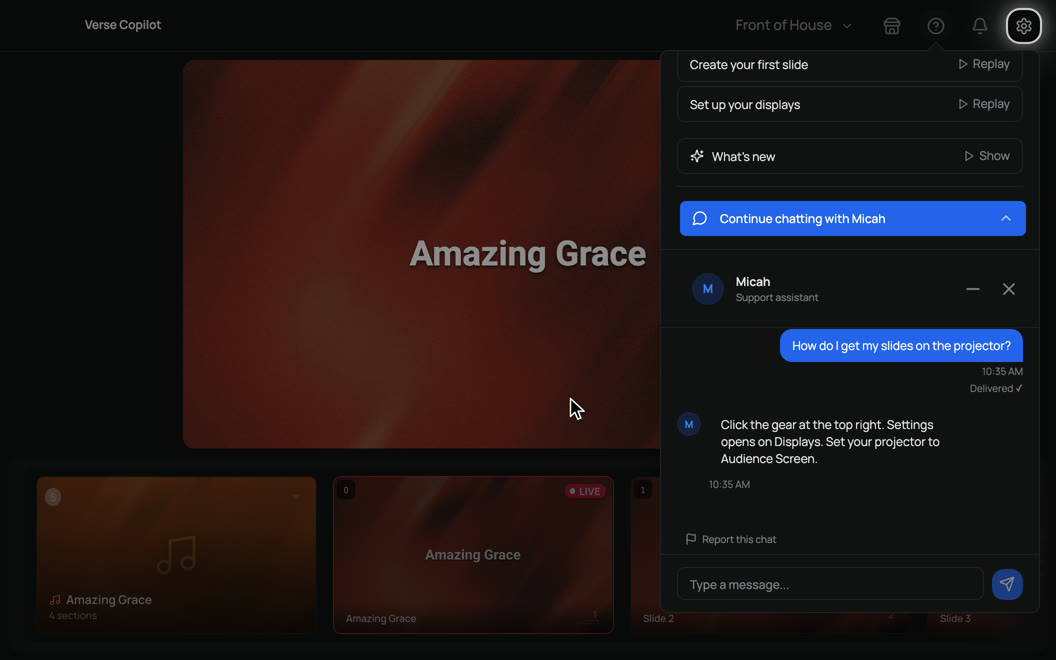
Download the App
Get Verse Copilot for Mac & Windows
System Requirements
Check your Mac or PC will run it
What's New
Latest updates and improvements
Last updated Sept 2026